Build a Reliable AI-Assisted Coding Environment in Google Colab
Google Colab has quietly evolved from a simple cloud notebook into something considerably more ambitious — a platform where developers and data practitioners can generate, debug, and refine Python code through direct conversation with Gemini, Google's most capable AI family, without installing a single dependency.
What AI Prompt Cells Actually Are and How They Fit Into Colab's Interface
Colab's notebook structure has long operated on two familiar pillars: code cells for writing and running Python, and text cells for documentation and visual annotations. A third type has now joined them — the AI prompt cell — and it represents a meaningful departure from the traditional notebook model.
To create one, open any Colab notebook and click the small dropdown arrow beside the "Code" button in the upper toolbar. Select "Add AI prompt cell," and a text input box labeled "Ask me anything…" appears in place of a standard coding block. From there, users type natural language instructions and wait a few seconds while the connected Gemini model processes the request in the background.
Setting Up a Google Colab AI-Assisted Coding Environment That Actually Works
Image by Editor
Consider a prompt like: Write Python code that generates 100 values for five different types of weather forecast values, and plots a histogram of these values. The model returns a mixture of explanatory prose and working code — useful for understanding what the code does, but not directly executable as-is. That's where the practical pairing comes in: placing a standard code cell immediately below the AI prompt cell, then copying just the code portion into it for execution. The AI prompt cell remains in the notebook, ready for follow-up prompts, refinements, or entirely new directions.
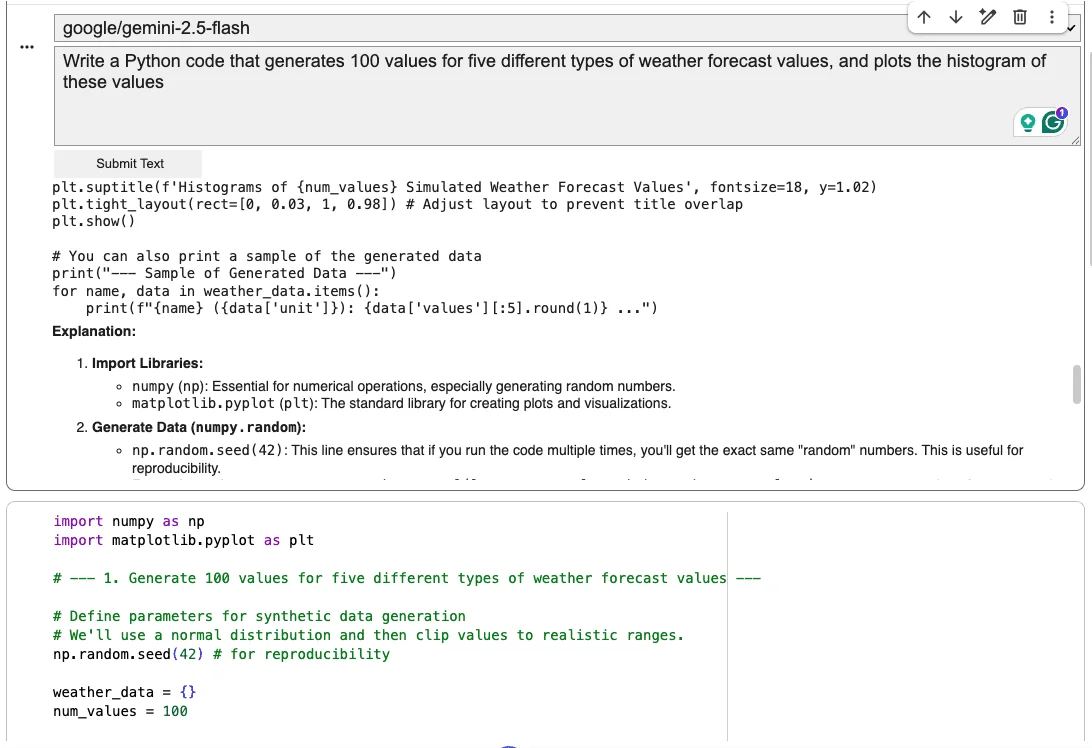
Taking advantage of AI prompt cells and executable code cells
The Isolation Problem — and the Workflow Built Around It
Here is the most consequential limitation of the current implementation: AI prompt cells have no automatic awareness of the rest of the notebook. Ask one to analyze code written elsewhere in the notebook, and it will respond by asking you to paste that code directly into the prompt. There is no way to reference cells by position or number, and phrases like "rewrite the third code cell" will not work.
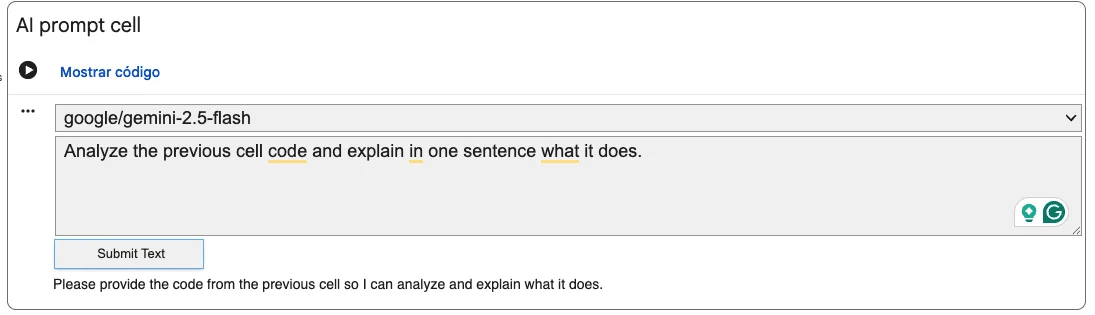
AI response when asking for code outside the AI prompt cell
This isolation shapes the most effective approach for working with these cells. Rather than scattering AI prompt cells throughout a long notebook and expecting them to pick up context automatically, the better strategy is deliberate placement — position each one immediately adjacent to the code block it will interrogate. Paste the relevant code directly into the prompt, then use action-oriented instructions: "explain," "refactor," "simplify," "add error handling." After reviewing the output, paste the resulting code into a backup code cell placed carefully within the broader data transformation pipeline.
AI response when asking for code outside the AI prompt cell
For tasks that require persistent, context-aware dialogue — explaining existing code, progressively transforming a function, or stepping through logic — the Gemini panel accessed via the magic wand icon within any code cell remains the more capable option. It opens a dedicated sidebar on the right-hand side of Colab that maintains conversational context more naturally than isolated prompt cells can.
Why This Matters for Practitioners Who Prototype in the Cloud
Google Colab's positioning has always been accessibility: a browser-based Python environment requiring no local setup, free at its baseline tier, and well-suited for experimentation before anything moves toward production. Adding AI-assisted code generation to that environment compresses the gap between an idea and its first working implementation.
For users with limited Python experience, the AI prompt cell lowers the activation energy for getting something runnable on screen. For experienced developers, it accelerates the repetitive parts of prototyping — boilerplate generation, adding logging statements, refactoring for readability — while keeping the human in control of what actually executes. The copy-then-run workflow is a deliberate friction point: the model generates, but the developer decides what runs.
What's more telling is the trajectory. Colab has moved from a notebook runner to a platform that integrates one of the most capable AI model families available, directly inside the coding environment. That shift reflects a broader industry pattern — AI assistance is becoming embedded infrastructure rather than a bolt-on feature. The current limitations around context isolation and non-executable output feel like version-one constraints rather than permanent design decisions.
Colab's AI-assisted coding tools won't replace the judgment of experienced practitioners, but they do change the economics of experimentation — and for anyone spending time prototyping Python workflows in a browser, that's a shift worth understanding on its own terms.
Google Colab has quietly become one of the more interesting testing grounds for AI-assisted development tools — not because it's the most powerful environment available, but because it sits at the intersection of accessibility and experimentation in a way few platforms manage. The latest round of updates pushes that further, adding features that change how developers interact with notebooks at a fundamental level.
What's new in Colab's AI coding toolkit
The most notable addition is the AI prompt cell — a new cell type that lets users describe what they want in plain language and have Colab generate the corresponding code inline. This is distinct from the existing autocomplete and inline suggestion features. Rather than completing code you've already started writing, the prompt cell treats natural language as a first-class input, generating full code blocks from a description alone.
That's a meaningful shift in workflow. Instead of switching between a chat interface and your notebook, the generation happens directly inside the document. For exploratory work — prototyping a data pipeline, sketching out a model training loop, testing an unfamiliar API — that tight integration reduces friction considerably.
Colab also continues to offer AI-powered code explanation and refactoring tools, though these serve different purposes than the prompt cell. The explanation feature works best when you're handed someone else's notebook or returning to code you wrote months ago. Refactoring suggestions tend to be most useful for cleaning up working-but-messy cells rather than generating new logic from scratch.
Where the AI assistance actually holds up — and where it doesn't
The prompt cell performs well on self-contained tasks with clear scope: loading a dataset, plotting a chart, running a standard preprocessing step. The more context a task requires — knowledge of what's already defined in the notebook, dependencies between cells, custom class structures — the more the output quality degrades. Colab's AI doesn't have deep awareness of your full notebook state, which means generated code sometimes references variables that don't exist or ignores ones that do.
Refactoring existing code is a case where the dedicated refactor tool outperforms the prompt cell. Asking the prompt cell to "clean up the cell above" produces inconsistent results. The refactor function, applied directly to a selected cell, has better context and tends to produce more reliable output. Similarly, for understanding dense or unfamiliar code, the explain feature gives more structured, readable breakdowns than asking the prompt cell to describe what something does.
The practical takeaway is that these tools aren't interchangeable. Each one is optimized for a specific moment in the development process, and using the right one for the right task makes a noticeable difference in output quality.
What this signals for browser-based development environments
Colab's AI feature rollout reflects a broader pattern: cloud-based notebooks are no longer just convenient alternatives to local environments — they're becoming opinionated development tools with their own AI-native workflows. The prompt cell, in particular, suggests Google is betting that the future of notebook-based coding involves less boilerplate writing and more intent-driven generation.
That has real implications for how data scientists and ML practitioners structure their work. If generation from natural language becomes reliable enough for routine tasks, the cognitive load of notebook development shifts — less time on syntax, more on problem framing and output validation. The current limitations are real, but the direction is clear.
For teams already working in Colab, the new features are worth integrating incrementally rather than wholesale. Start with the prompt cell for greenfield cells, lean on the refactor and explain tools for existing code, and treat AI suggestions as a starting point rather than a finished product — which, for now, is exactly what they are.